Claude Code keeps every session on the computer that ran it. Close the laptop and the conversation stays inside it. Nothing syncs to your other computers, and the terminal, the desktop app and claude.ai/code each keep their own list.
You can still pick a session up somewhere else. How depends on where you're going: your phone, another computer, or just the desktop app.
Remote Control on your phone
Remote Control puts a session that's running on your computer into the Claude app on your phone, or into claude.ai/code in any browser. Claude keeps running on the computer, with your files and tools. The phone just sends your messages and shows the replies.
In the session you want on your phone, type:
/remote-control- Open the Claude app on your phone, tap Code, and pick the session from the list. To scan a QR code instead, run
/remote-controla second time.
/rc is the short version, and claude --remote-control starts a new session with it already on.
It works on Pro, Max, Team and Enterprise plans, not with an API key. On Team and Enterprise, an Owner has to switch it on first in the Claude Code admin settings.
Claude Code has to stay open on the computer, though. If the laptop sleeps, the session reconnects when it wakes up. If you close the terminal, it drops off your phone until you reopen the conversation with claude --resume, or claude --continue if it was the last one in that folder (Remote Control docs).
Cloud sessions and claude --teleport
A cloud session runs on Anthropic's computers instead of yours. It keeps going after you shut the laptop, and any computer signed in to your claude.ai account can pull it down.
- Push your branch. The cloud session clones your repo from GitHub at your current branch, not your local folder. If the repo has no remote, or the Claude GitHub App isn't installed on it, Claude Code uploads your local repo instead.
Start the cloud session from the terminal:
claude --cloud "Fix the flaky test in auth.spec.ts"On the other computer, go to a checkout of the same repo and run:
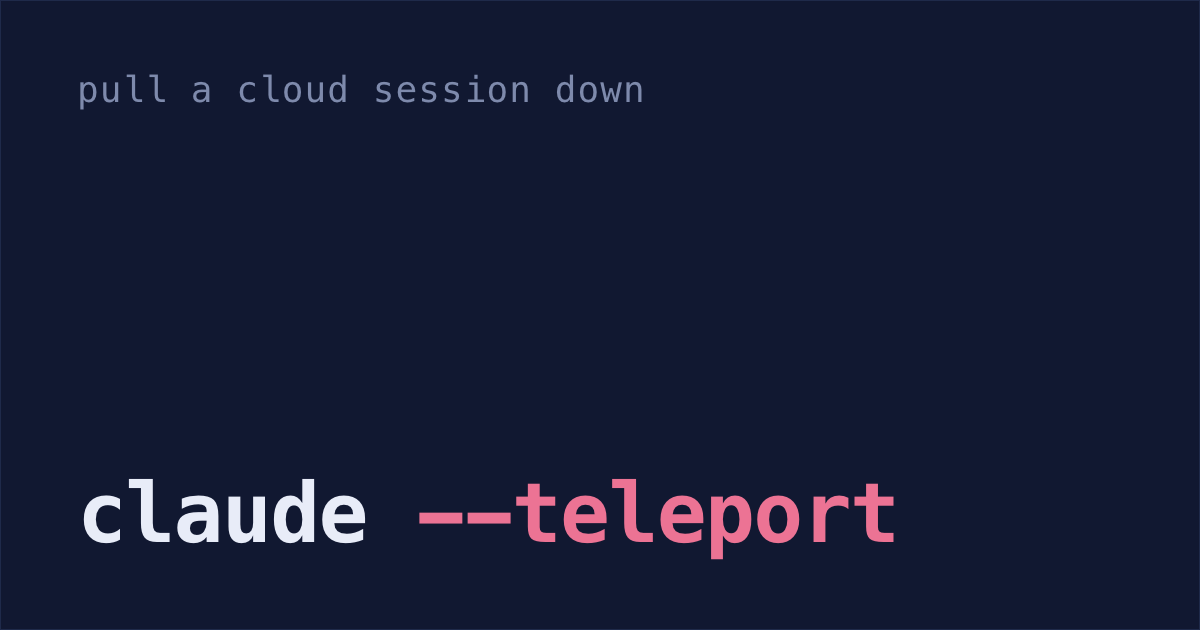
claude --teleport- Pick the session from the list. Teleport checks out the session's branch and loads the cloud session's conversation.
Teleport needs the same claude.ai account, the branch pushed to GitHub, and no uncommitted changes (it offers to stash them).
From then on, the terminal has its own copy. What you do there doesn't show up in the cloud session (cloud docs). Cloud sessions come with Pro, Max and Team plans, and with Enterprise premium or Chat + Claude Code seats.
This only helps with work that started in the cloud. The terminal can't send a session you've already started up to the cloud, but the desktop app can.
Desktop app: /desktop, /resume and the "Continue in" menu
The desktop app keeps its own list of sessions, but you can move one across either way:
- In the terminal,
/desktopsaves the session, opens it in the desktop app and quits Claude Code in the terminal. It works on macOS and x64 Windows when you're signed in with a Claude subscription. - In the desktop app,
/resumelists the sessions you started in the terminal. Pick one and it carries on in the app.
Once a session is in the desktop app, it can go to the cloud. Open the Continue in menu (the VS Code icon at the bottom right of the session toolbar) and choose Claude Code on the Web.
The app pushes your branch, writes a summary of the conversation, and starts a new cloud session with the full context. You can then archive the local session or keep it. It needs a clean working tree and doesn't work for SSH sessions (desktop docs).
So a terminal session can reach another computer in three moves: /desktop, Continue in, then claude --teleport on the other computer. What arrives there is the new cloud session the app started, not the terminal session itself.
Copy the .jsonl file by hand
Every terminal conversation is saved in ~/.claude/projects/<project>/<session-id>.jsonl, with every message and tool call in it. Large tool outputs and subagent transcripts go in a folder of the same name next to it. Copy both, and put them in the matching project folder on the other computer.
On the first computer, commit and push your code. Then, from the project's folder, list its three newest sessions:
ls -t ~/.claude/projects/$(pwd | sed 's/[^a-zA-Z0-9]/-/g')/*.jsonl | head -3Claude Code names each project's folder after its path, with every character that isn't a letter or a digit turned into
-. Theseddoes the same. If that name would run past 200 characters, Claude Code cuts it and adds a hash, so for a very deep folder, look for it inls ~/.claude/projectsinstead (sessions docs).- Copy the newest file to the other computer. AirDrop is fine. If a folder with the same name sits next to it, copy that too.
On the other computer, pull your code and go to the project's folder. Make the same folder under
~/.claude/projectsand move the file into it, and the folder too if you copied one:mkdir -p ~/.claude/projects/$(pwd | sed 's/[^a-zA-Z0-9]/-/g') mv ~/Downloads/fe402f37-e79c-4db3-bc61-02fb4022f377* ~/.claude/projects/$(pwd | sed 's/[^a-zA-Z0-9]/-/g')/Still in the project's folder, resume it by its ID:
claude --resume fe402f37-e79c-4db3-bc61-02fb4022f377
The file holds the conversation, not your code. That's why the push and pull matter: without them, Claude picks up talking about changes that aren't on this computer.
Memory and settings stay on the first computer
The session file brings the conversation and nothing else. These stay behind unless you copy them too (what's in ~/.claude):
~/.claude/projects/<project>/memory/: the notes Claude saves about each project~/.claude/settings.jsonand~/.claude/CLAUDE.md: your settings and your own instructions~/.claude/history.jsonl: every prompt you've typed, which is what the up arrow brings back~/.claude/file-history/<session-id>/: the snapshots/rewinduses to undo Claude's edits
Remote Control, --cloud and a handoff note
Nobody wants to AirDrop JSON files around, so set these up once:
- Turn Remote Control on for every session, once. Run
/configand set Enable Remote Control for all sessions totrue. Every new terminal session then shows up in the Claude app on your phone, as long as the terminal stays open. - If you already know the work will move to another computer, start it with
claude --cloudand teleport it wherever you end up. - Keep sessions for ten years instead of 30 days. Claude Code deletes a session file once it's 30 days old, so add
"cleanupPeriodDays": 3650to~/.claude/settings.json. There's no value for "never": Claude Code rejects0as an error (docs). For everything else, have Claude write a handoff note before you switch. Paste this, commit the file with your work and push:
Write what we've done, what's left and the exact next step to HANDOFF.md. Include the commands to run and the files that matter, so a new session on another computer can carry on from it.
On the other computer, pull and start a new session with "Read HANDOFF.md and continue." You lose the full conversation, but there's no file to find, and it works in any tool.
Shabash, the Mac app I'm building, keeps its own copy of the sessions you typed in, so the 30-day cleanup can't take them, and reopening one from Shabash brings the conversation back. It doesn't move sessions between computers, so for that you still need one of the ways above.